
The Communication logs section explains how suppliers can create and send communication logs related to a purchase order.
This section focuses on documenting and sharing important messages, updates, or clarifications with the customer in a structured and traceable way, directly from the platform.
For a complete overview of the Purchase Orders (POs) module, including all related sections and functionalities, refer to the full documentation available at:
Steps to create a communication log
-
Go to Purchase Orders in the main menu.
-
In the Consolidated by PO tab, locate the purchase order you want to manage.
-
In the Actions column, click the Edit icon to open the purchase order detail view.
-
Go to the Communication logs tab.
-
Click New communication log.
Creating a new communication log
-
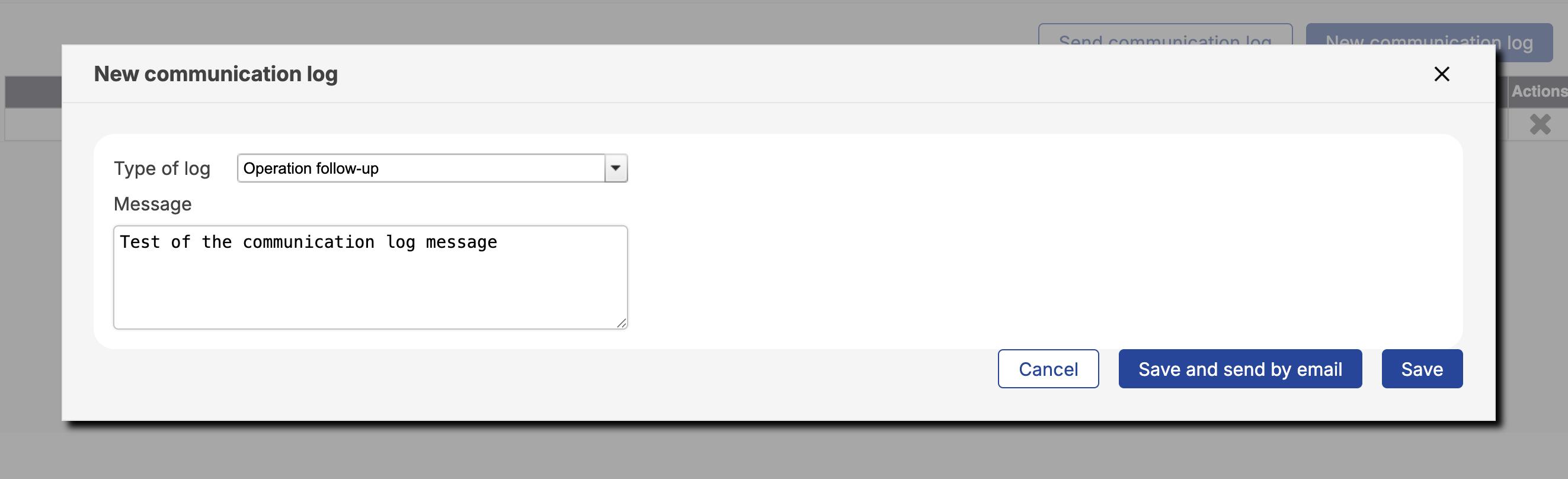
In the pop-up window:
-
Select the type of log.
-
Enter the message you want to communicate.
-
-
Choose one of the following options:
-
Save: The communication log will be saved and associated with the purchase order, but no email notification will be sent to the customer.
-
Save and send by email: The communication log will be saved and the system will continue to the email sending process.
-
Sending communication logs by email
-
If you select Save and send by email, a new window will open.
-
Select whether you want to send:

-
Only the latest communication log, or
-
All communication logs associated with the purchase order.
-
-
The correspondence generator window will then open.
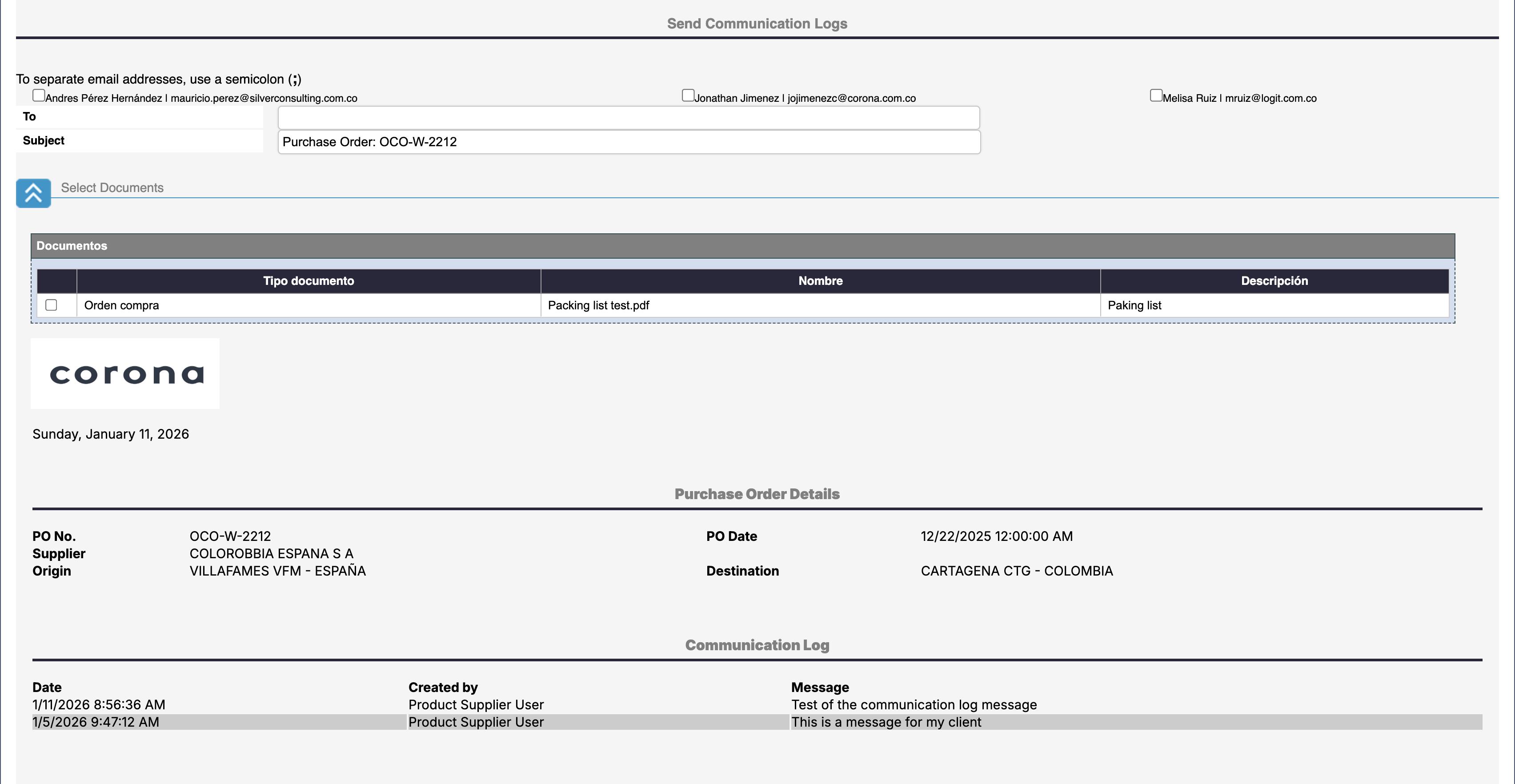
Correspondence screen -
In this window:
-
Select the contacts you want to send the communication to, or enter email addresses in the To field.
-
Modify the subject if needed.
-
Click the blue arrow to expand the documents. Select the documents you want to attach by expanding the Select documents section.
-
Note: Only documents already associated with the purchase order will be available.
External files cannot be attached.
-
-
Click Send or Send and return to complete the process.
-
Send: The communication log will be sent without closing the correspondence window
-
Send and return: The communication log will be sent and the system will go back to the purchase order administration.
-
Generate PDF: generates the communication log in PDF.
Important notes
-
All communication logs are part of the official communication history of the purchase order.
-
Messages sent through this section are visible to the client on their platform.
-
Using communication logs helps ensure clear, traceable, and centralized communication for both suppliers and customers.