
The Purchase Orders module allows you to view, review, and manage the purchase orders assigned to you as a supplier by your clients.
From this module, you can:
-
Access a consolidated list of purchase orders.
-
Access a delail list of SKUs.
-
Use filters to quickly find specific orders by number, shipment, date range, status, or backorder.
-
Review key commercial and logistics information at a glance.
-
Propose changes to the estimated delivery date when adjustments are required. For detailed instructions on how to request estimated delivery date changes—both individually and in batch—please refer to the following guide: Request a change to the estimated delivery date
![[POs] 1 (1).gif](/__attachments/a_c1a7785c37a09e7151e2b6577b5317bae32665cfa3dfcaa65ddef6fbf0daef95/%5BPOs%5D%201%20(1).gif)
Filters description:
At the top of the page, you can use the following filters to narrow down the list of purchase orders:
-
Purchase Order No. Filters purchase orders by their purchase order number.
-
Shipment No. Filters purchase orders linked to a specific shipment number.
-
Issued date from. Displays purchase orders issued on or after the selected date.
-
Issued date to. Displays purchase orders issued on or before the selected date.
Backorder. Indicates whether the purchase order has a pending balance to be delivered. The backorder is calculated per product line as the order quantity minus the total quantity dispatched across all of its imports. But this is important:
Dispatches are created by the buyer’s user in the internal system (LRP), not by the supplier; a purchase order may be dispatched across several imports, and each one subtracts its dispatched quantity. The backorder always equals the remaining quantity still to be dispatched, and it decreases with each dispatch until the balance reaches zero.
The backorder is shown at two levels, depending on where you are standing:
-
Consolidated by PO: the backorder is the total pending balance of the order — the sum of all product lines. At this level it does not specify which product the balance belongs to.

-
Detailed by SKU: the backorder is shown per product line, so you can see exactly which SKU still has a pending balance.

States:
-
Available balance: the order still has remaining quantities pending delivery (backorder greater than zero).
-
Out of stock: all quantities have been fully delivered and no balance remains (backorder equals zero).
-
No products: the purchase order does not contain product items.
-
-
Example. A purchase order has 1,000 units of Pigmento Gris and 500 of Pigmento Verde (1,500 total). The buyer creates an dispach in the internal LRP that dispatches 500 units of Gris and 250 of Verde:
-
Consolidated by PO → Backorder = 750 (it does not say which products).
-
Detailed by SKU → Backorder Gris = 500, Back order Verde = 250.
-
-
Both lines remain Available balance, since each still has quantities pending.
-
Status. Filters purchase orders according to their current status.
-
The Status filter reflects the current situation of a purchase order based on its estimated delivery date.
-
Active. The estimated delivery date is more than 7 days in the future.
-
Expiring soon. The estimated delivery date is 7 days or less from today.
-
Overdue. The estimated delivery date has already passed and the order has not been fully delivered.
-
Delivered. The purchase order has been fully delivered.
-
If no filters are selected, the system displays all purchase orders.
Purchase order views
There are two views:
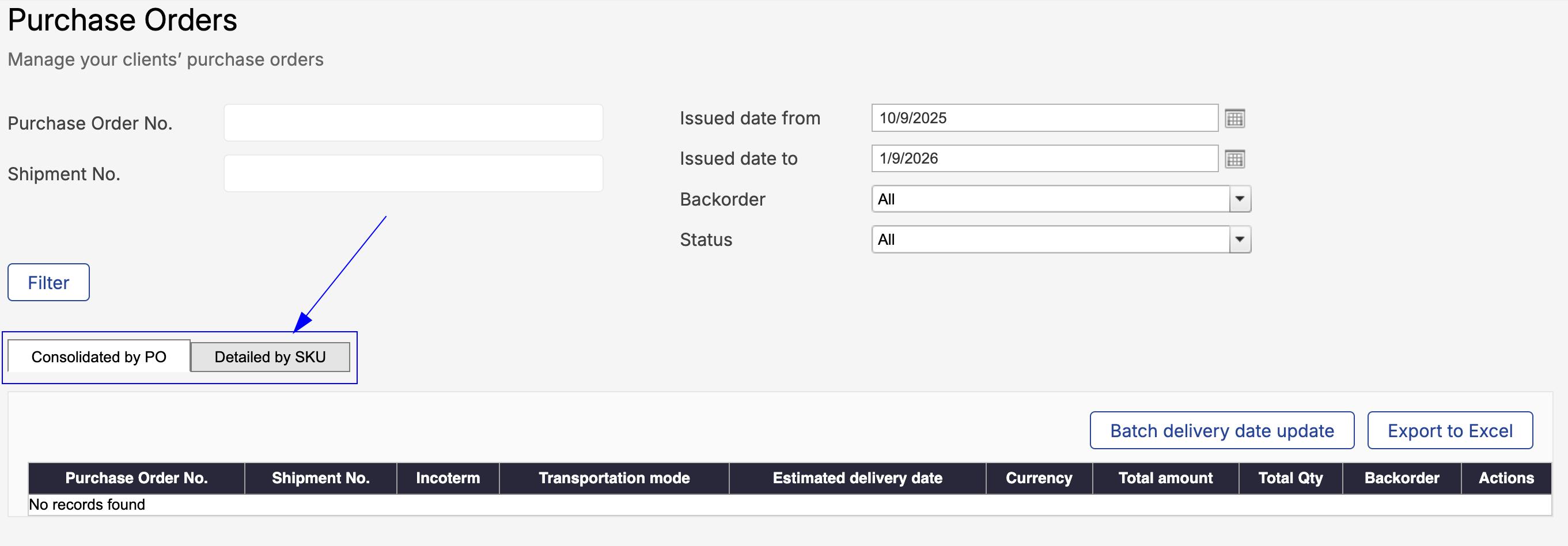
-
Consolidated by PO shows one row per purchase order
-
Detailed by SKU shows the breakdown by product.
The data is the same. Only the level of detail changes.
Purchase order edition view
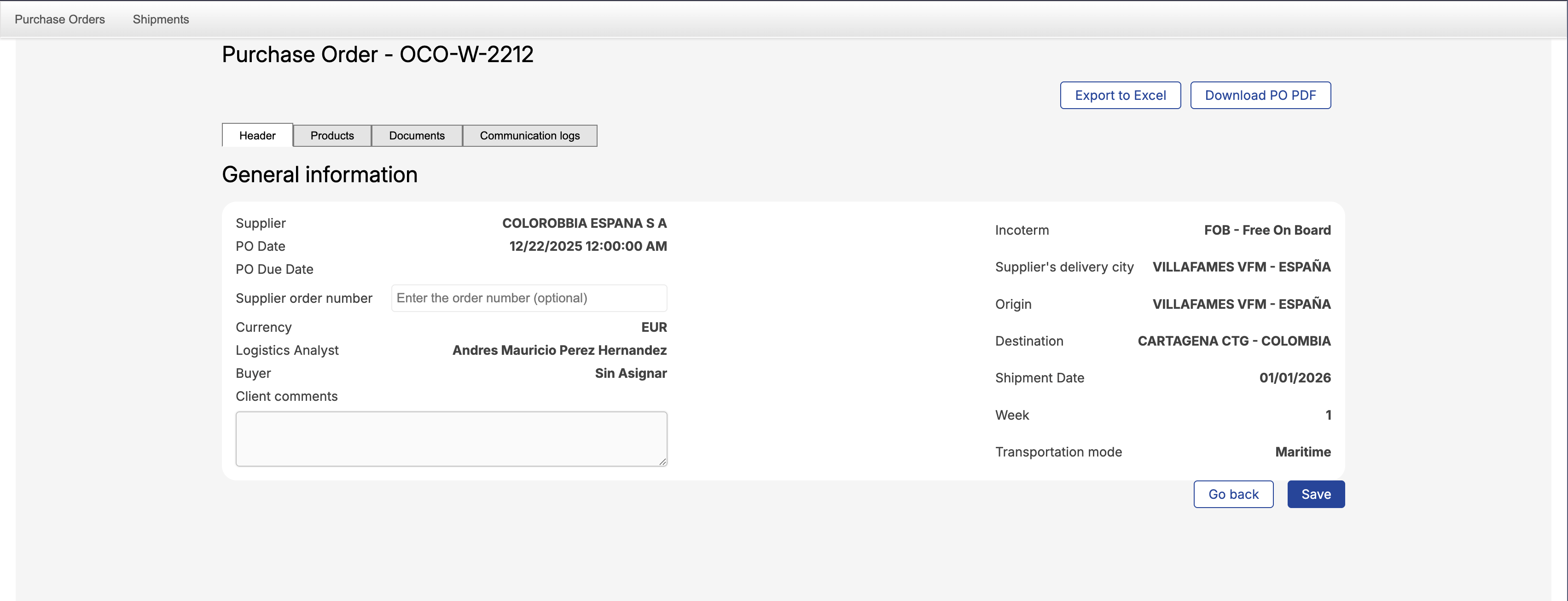
By selecting a purchase order, you can open its detailed view and work with the information provided by your client. The purchase order detail is organized into sections that allow you to:
-
Review general order information.
-
Check the list of products included in the order.
-
Upload and consult documents related to the order.
-
Communicate with your client through the communication log.
This module helps you keep full visibility of your clients’ purchase orders, take action when required, and ensure clear, timely communication throughout the process.
Header
This view displays the key commercial and logistics details of a purchase order assigned to you by your client.
-
Supplier: The product supplier responsible for fulfilling the purchase order.
-
PO Date: The date on which the purchase order was issued by the client.
-
PO Due Date: The deadline agreed for fulfilling the purchase order, based on the negotiated terms.
-
Supplier order number: Optional internal reference used by the supplier to identify the purchase order in their own systems.
-
Currency: The currency agreed for the commercial values of the order.
-
Logistics Analyst: The person assigned by the client to manage the logistics operation.
-
Buyer: The client’s purchasing contact associated with the order.
-
Client comments: Notes or instructions provided by the client for the supplier.
-
Incoterm: The negotiated Incoterm that defines responsibilities, costs, and risk transfer.
-
Supplier’s delivery city: The internal city or province where the supplier delivers the goods according to the Incoterm. In some cases, this may be the same city as the origin, but it does not always represent the starting point of the international transportation.
-
Origin: The location where the international transportation begins.
This can be a port, airport, border crossing, or inland terminal, depending on the transportation mode. -
Destination: The location where the international transportation ends.
This can be a port, airport, border crossing, or inland terminal, depending on the transportation mode. -
Shipment Date: The planned date for dispatching the goods.
-
Week: The calendar week associated with the shipment date.
-
Transportation mode: The mode of transport agreed for the shipment (e.g., maritime).
Products
The Products window provides visibility into the products included in the purchase order at a line-item level.
In this window, suppliers cannot modify commercial or product information such as quantities, prices, or descriptions.
The only action available is to request updates to the estimated delivery date, which can be done:
-
Manually, per product line
-
In batch, for multiple product lines at once
These updates help improve logistics planning and shipment tracking without altering the commercial conditions of the purchase order.
For a detailed explanation of how to update the estimated delivery date, including batch and manual options, refer to the following documentation: Request a change to the estimated delivery date
Documents
The Documents window is used to upload and consult documents associated with the purchase order.
This section allows suppliers to share documents that may be useful for the client and the logistics process, such as packing lists, commercial invoices, or other supporting files. All documents uploaded here are centrally stored and visible to the relevant parties, ensuring transparency and traceability.
The Documents window focuses on document visibility and organization within the purchase order.
For a step-by-step explanation of how to upload documents, refer to the dedicated documentation page: Upload documents to a purchase order
Communication log
The communication log of a purchase order is a record used to document and track all relevant updates and messages exchanged between the supplier and the client.
Its purpose is to centralize all communication related to a purchase order in one place, ensuring that information remains clear, organized, and always available to both parties. This helps maintain traceability, avoid scattered emails or external messages, and ensure that everyone works with the same information and context.
Through the communication log, suppliers can add comments, clarifications, or important updates, while clients can also share relevant messages related to the purchase order.
For detailed instructions on how to create and send communication logs, refer to the dedicated documentation available at: Create and send communication logs