
The Documents section allows suppliers to upload and consult documents associated with a purchase order, such as PDF or Excel files used to support the operational and logistics process.
This page focuses specifically on how to manage documents within a purchase order.
For a complete overview of the Purchase Orders (POs) module, including all available views and actions, refer to the full documentation available at: Purchase Orders (POs)
Steps to upload a document
-
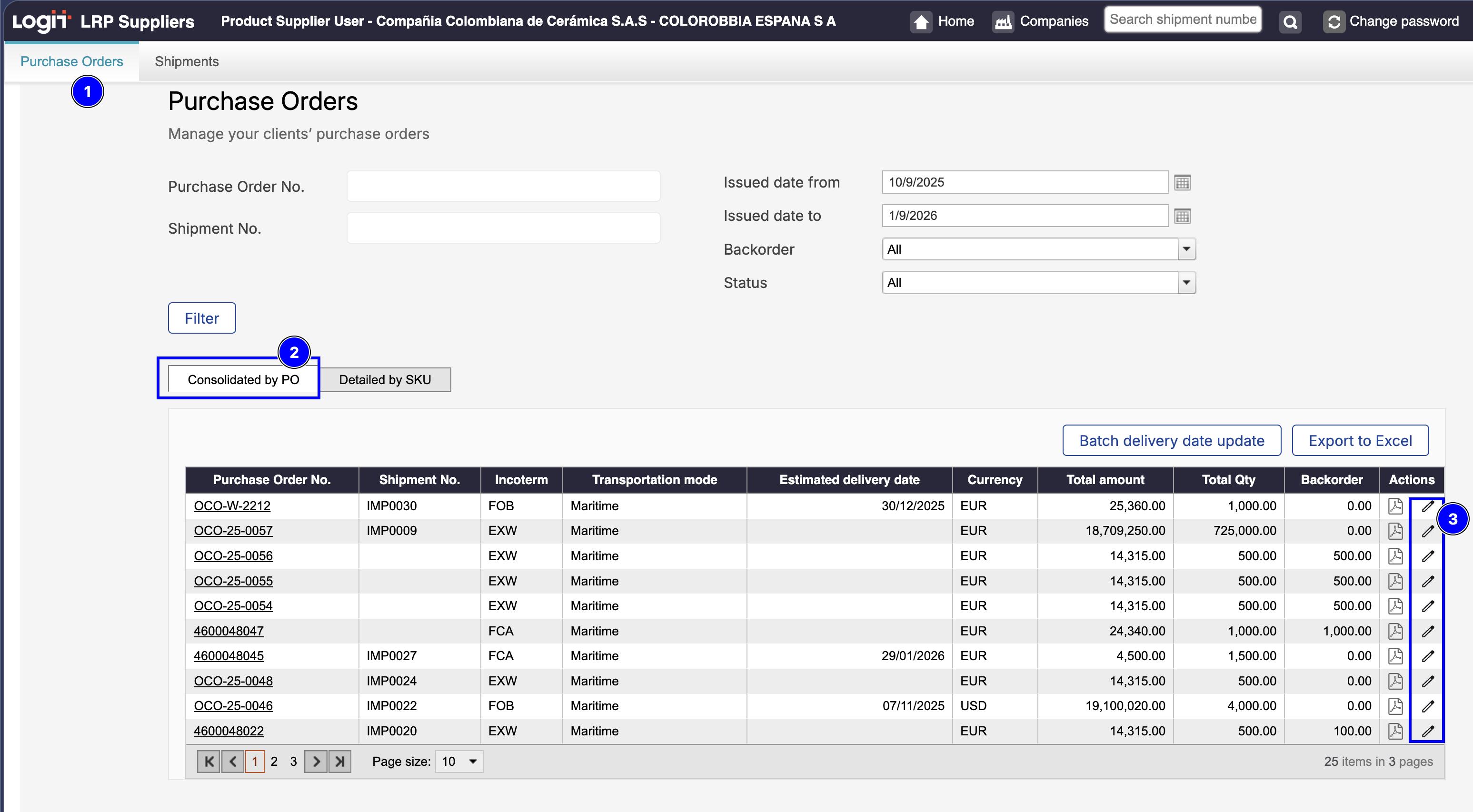
Go to Purchase Orders in the main menu.
-
In the Consolidated by PO tab,
-
in the Actions column, click the Edit icon to open the purchase order detail view.
-
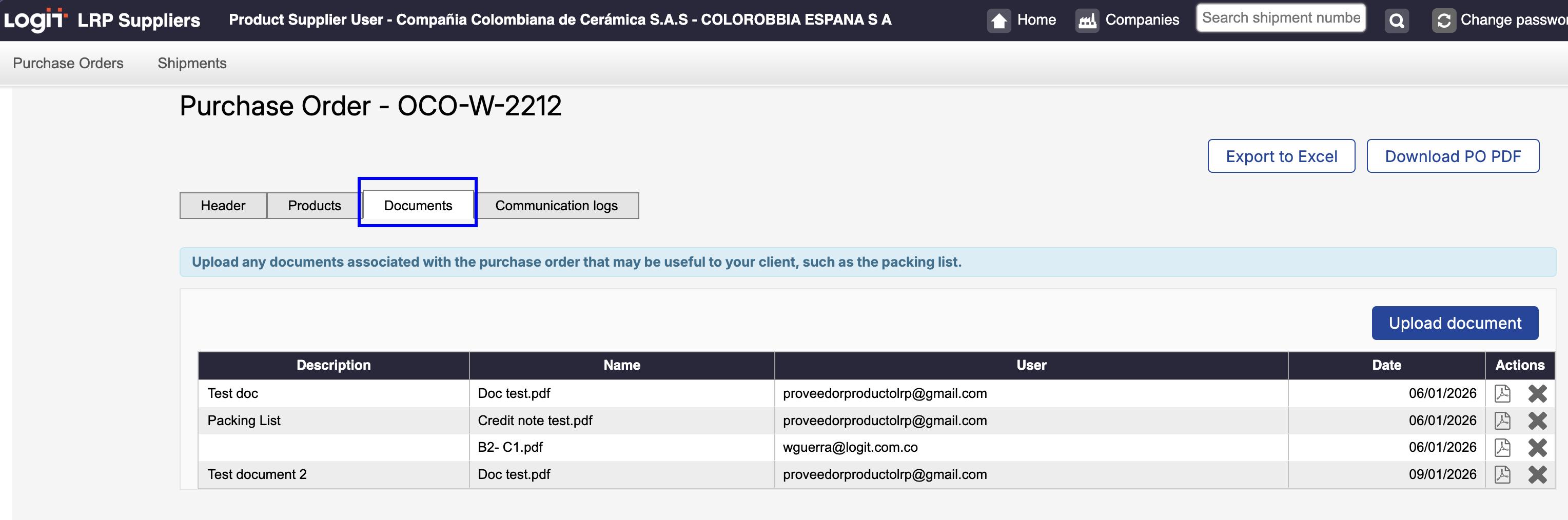
Go to the Documents tab.
-
Click Upload document.
-
In the pop-up window, click Choose file and select the document you want to upload.
-
Click Upload document to complete the process.
After uploading, the document will appear in the documents table, together with any documents uploaded by the customer.
Suppliers can only delete documents uploaded by themselves
Documents uploaded by the customer cannot be deleted by the supplier.