
The Estimated delivery date update allows suppliers to request changes to the expected delivery dates of products included in a purchase order. These updates can be made per product line or in batch, helping improve logistics planning and shipment tracking without modifying commercial conditions.
This page explains how to request delivery date updates within a purchase order.
For a complete overview of the Purchase Orders (POs) module, including all related views and actions, refer to the full documentation available at: Purchase Orders (POs)
In this document you will learn:
-
Request a change to the estimated delivery date inside a purchase order
-
Request a change to the estimated delivery date for products in different purchase orders.
How to request a change to the estimated delivery date - Step by step by purchase order
-
Go to Purchase Orders in the main menu.
-
In the Consolidated by PO tab, in the Actions column, click the Edit icon to open the purchase order detail view.
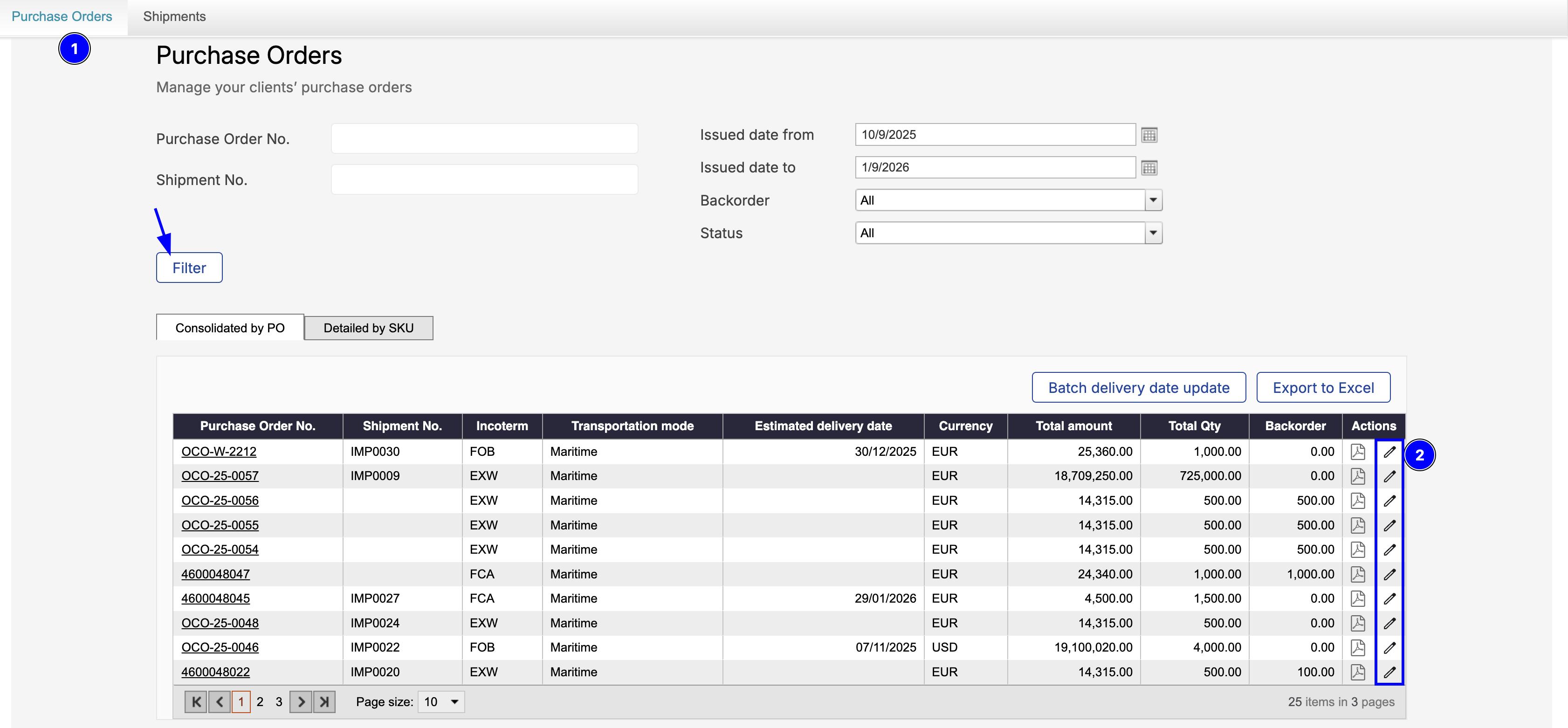
Action > edit icon -
Open the Products tab.
From here, you can request a change to the estimated delivery date in two ways:
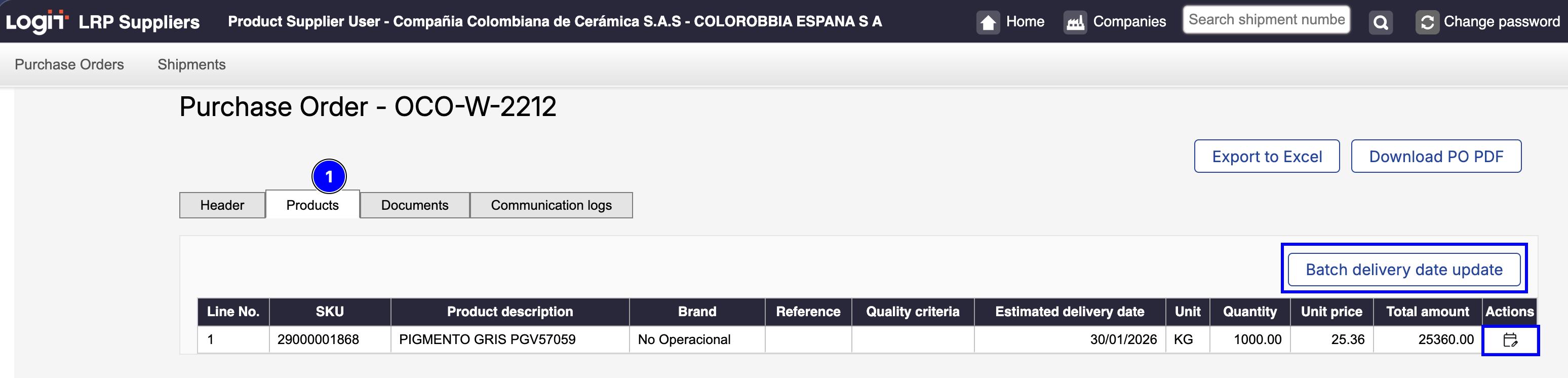
-
Batch delivery date update (multiple products at once).
-
Individual product update (one product at a time).
Batch delivery date update
Use this option when you need to request a delivery date change for multiple products within the same purchase order.
-
Click Batch delivery date update button at the top of the Products table.
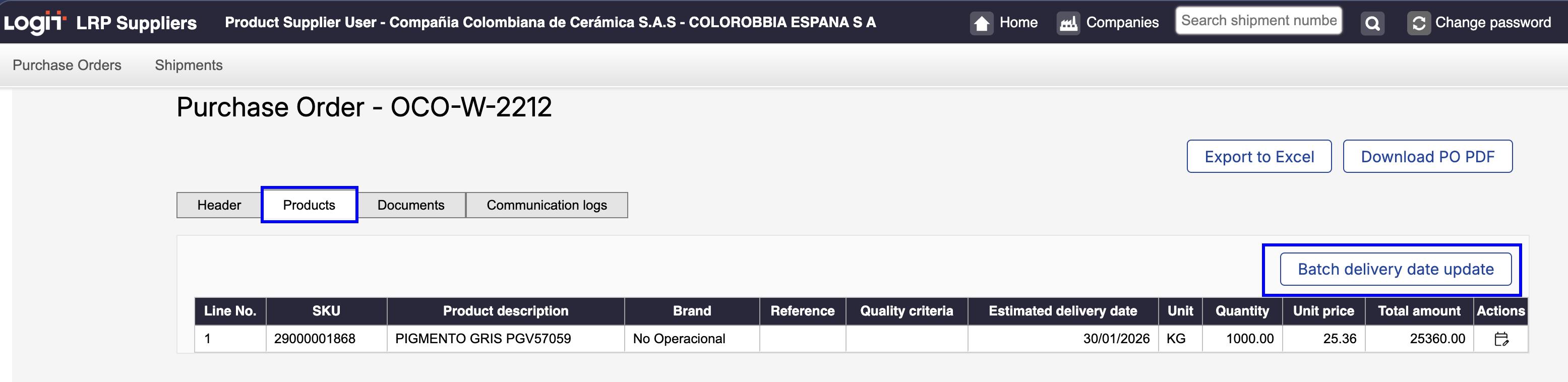
Batch delivery date update by purchase order -
Select Download template in the pop-up window.
The system will download an Excel file containing all products associated with the selected purchase order.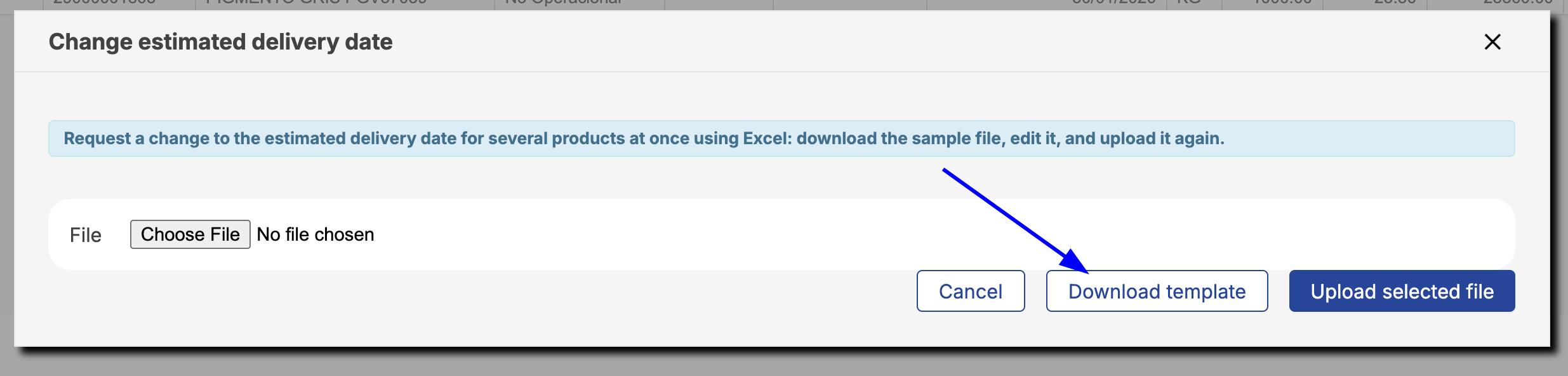
Download template for batch delivery date update by purchase order -
Complete the required information only for the products you want to update.
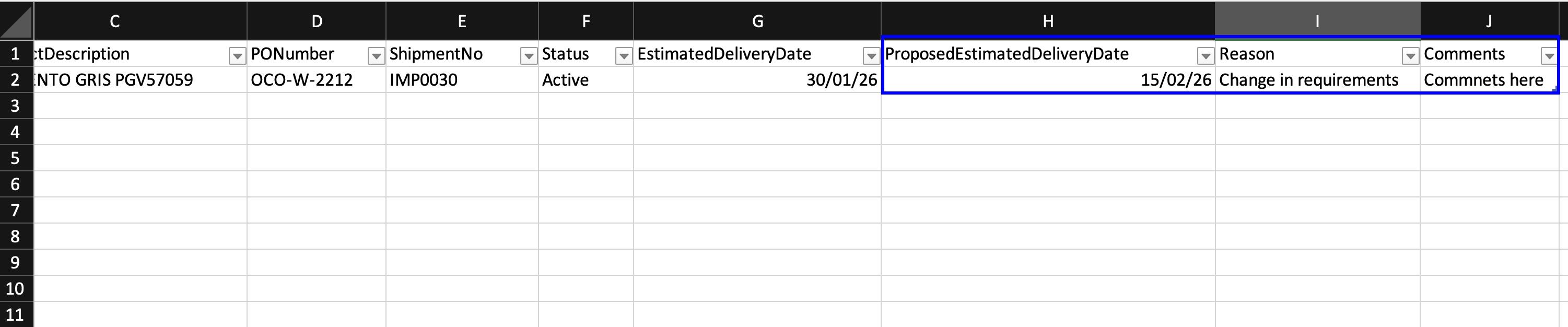
Template for batch delivery date in Excel
For each product, you must fill in:-
ProposedEstimatedDeliveryDate. Use the same date format as the current estimated delivery date (dd/mm/yyyy).
-
Reason. Select a reason from the available list. (the list is the same available in the system).
-
Comments. Provide a clear justification for the delivery date change.
-
-
Save the changes and close the Excel file.
-
Return to LRP Suppliers and upload the file in the same window by selecting Choose file, then click Upload selected file.
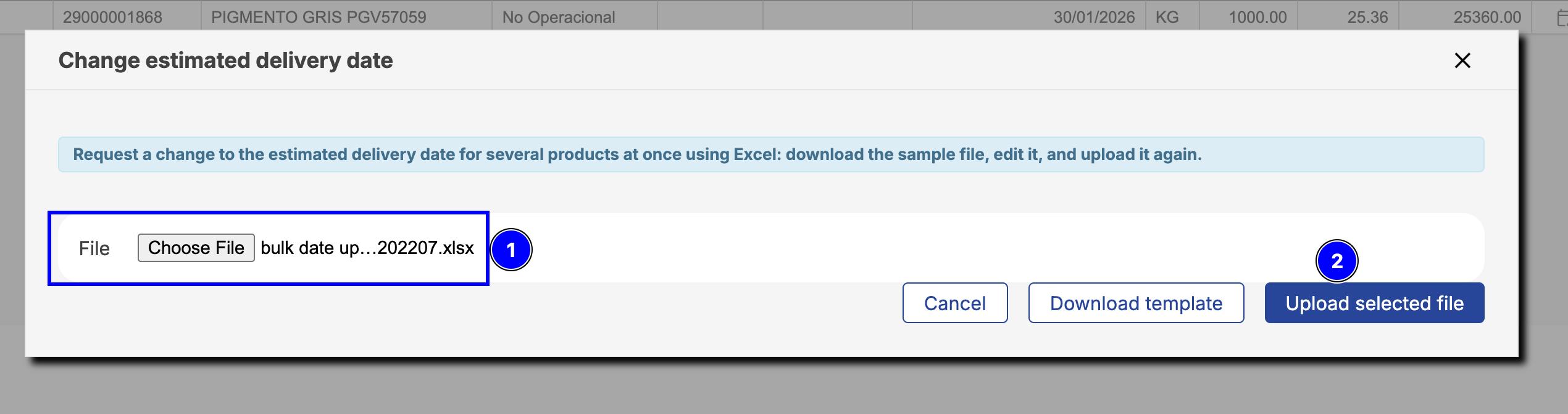
Select and upload the file for batch delivery date update -
A notification request will be sent to the buyer by email.
Approval outcome
The buyer can accept or reject the request.
-
If the request is accepted, the estimated delivery date will be updated to the new date.
-
If the request is rejected, the estimated delivery date will remain unchanged.
Change delivery date by product (SKU)
In addition to the batch option, you can request a delivery date change per SKU within a purchase order.
-
In the products table, click Change estimated delivery date in the actions column.
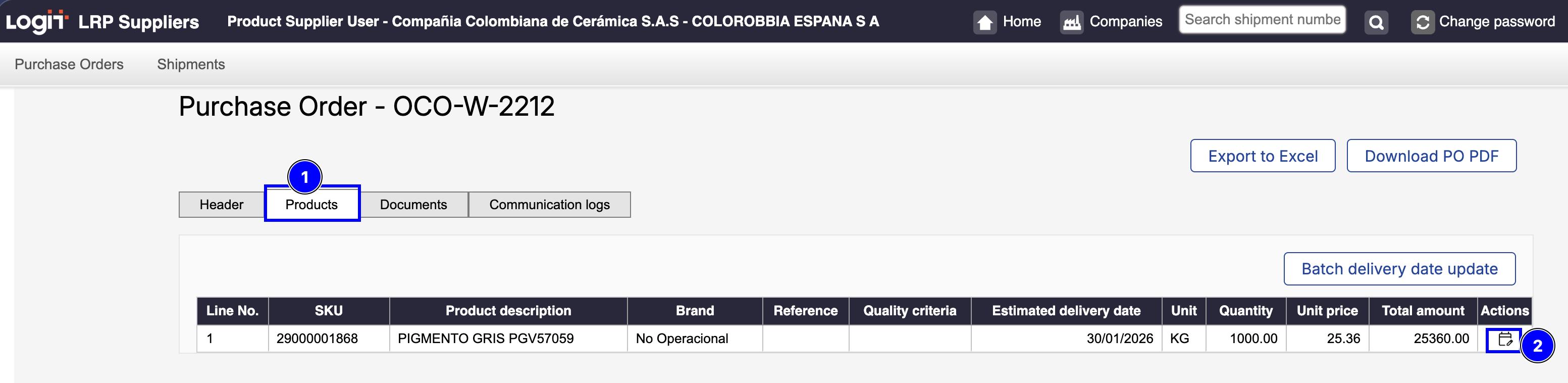
-
In the pop-up window, select:
-
The new estimated delivery date.
-
The reason.
-
The observations.
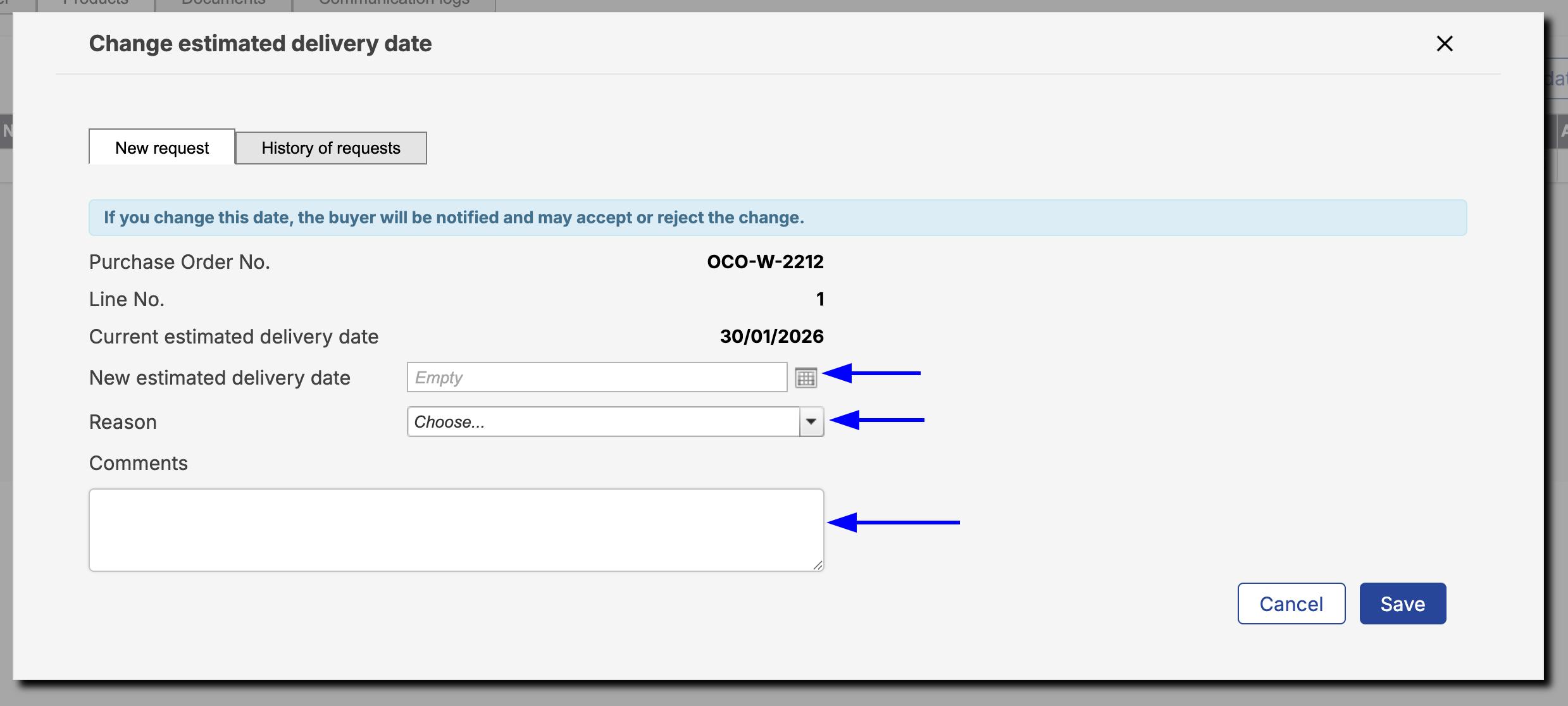
-
Save the changes and close the window.
-
-
A notification will be sent to the buyer and the person responsible for the operation on your client’s side.
Approval outcome
The buyer can accept or reject the request.
-
If the request is accepted, the estimated delivery date will be updated to the new date.
-
If the request is rejected, the estimated delivery date will remain unchanged.
Note that the same window also displays the request history and the current status.
Delivery date changes by product (SKU) (Detailed by SKU tab)
In some operations, shipments are managed by SKU instead of by purchase order. This allows specific products to be shipped independently, regardless of the purchase order they belong to.
The same logic applies to estimated delivery date changes: delivery dates can be requested per product, even if the selected items belong to different purchase orders.
Batch delivery date update (by SKU)
If you need to request delivery date changes for multiple products across different purchase orders, you can use the batch update option.
-
Go to Purchase Orders in the main menu.
-
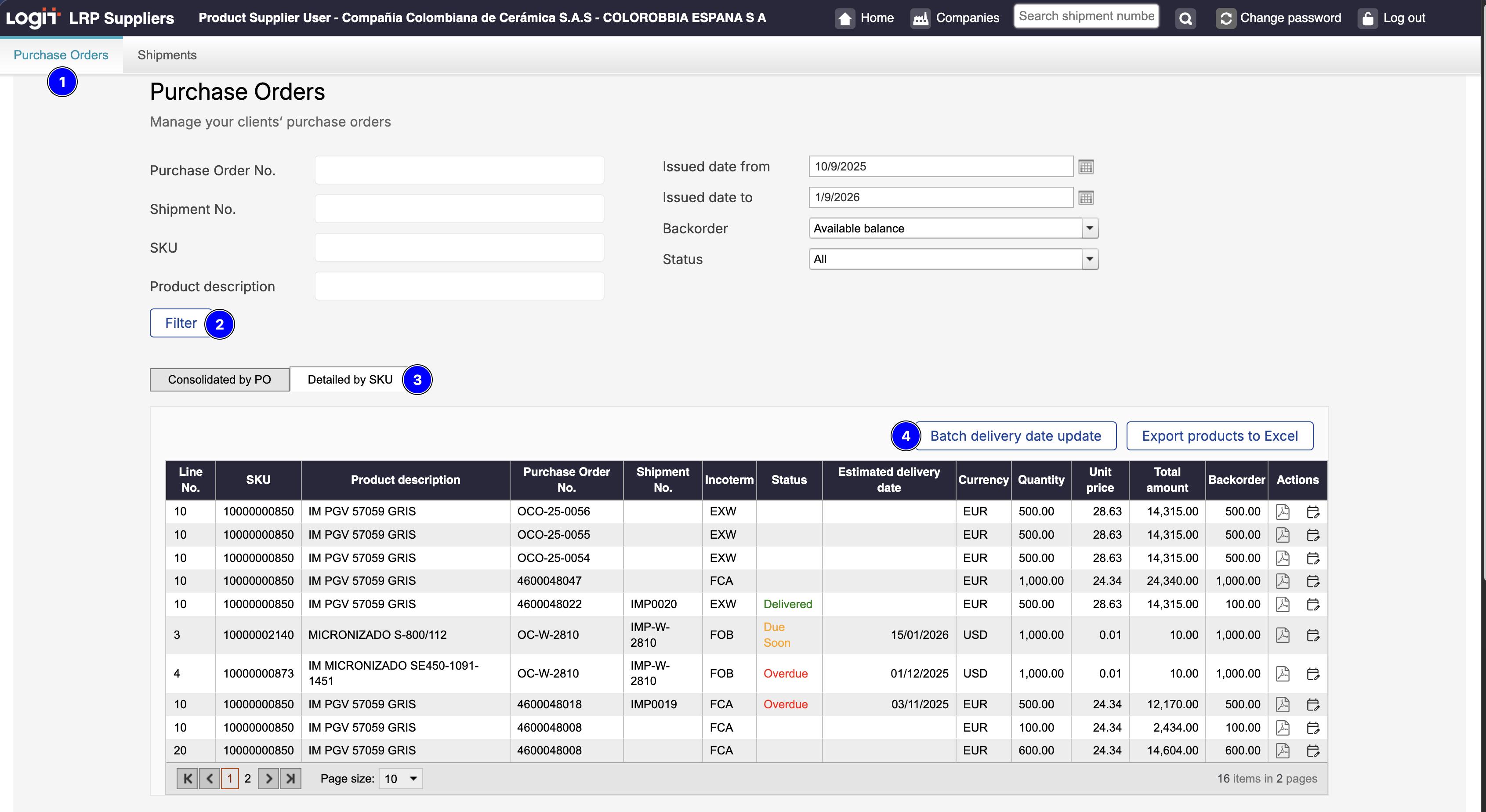
Open the Detailed by SKU tab. From this view, you can manage delivery date changes at product level.
-
In the Detailed by SKU tab, apply the filters to display the products you want to update.
-
Click Batch delivery date update.
-
Select Download template.
The system will download an Excel file containing all products listed according to the applied filters in the Detailed by SKU view.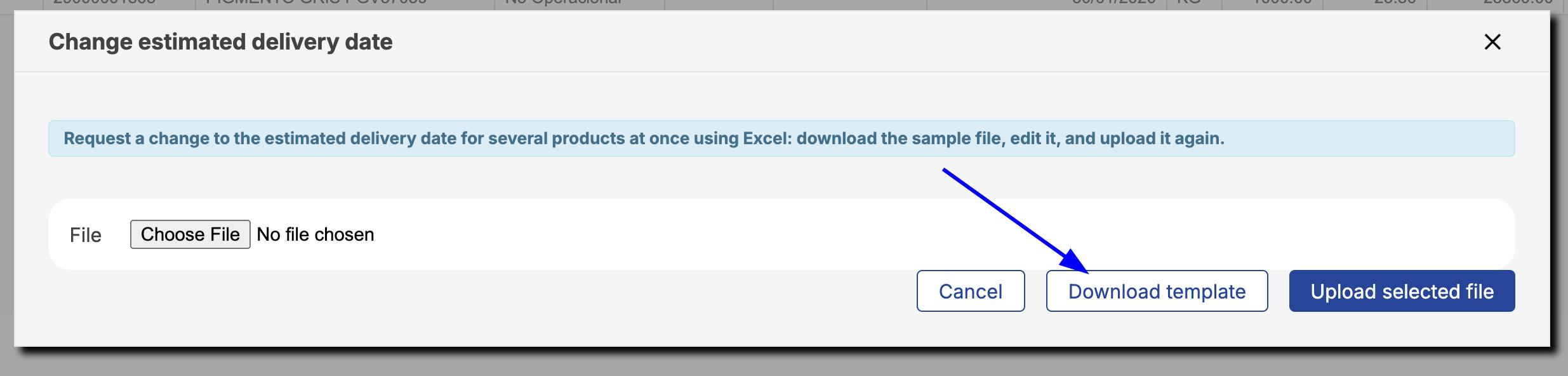
-
Complete the required fields only for the SKUs you want to update:
-
NewEstimatedDeliveryDate
-
Reason
-
Observations

-
Delete the rows you do not want to update in the Excel file.
-
Save the changes and close the Excel file.
-
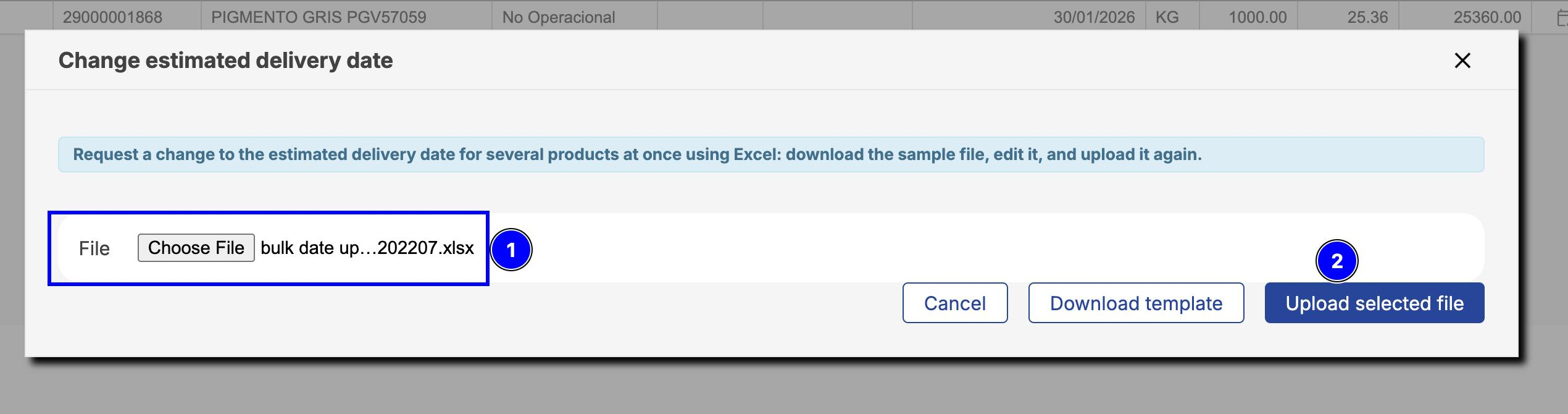
Return to LRP Suppliers and upload the file by selecting Choose file, then click Upload selected file.
-
Each request will be sent to the corresponding client for review.
Approval outcome
The buyer can accept or reject the request.
-
If the request is accepted, the estimated delivery date will be updated to the new date.
-
If the request is rejected, the estimated delivery date will remain unchanged.
Individual product delivery date update
You can also request a delivery date change for a single product in the Detailed by SKU tab.
-
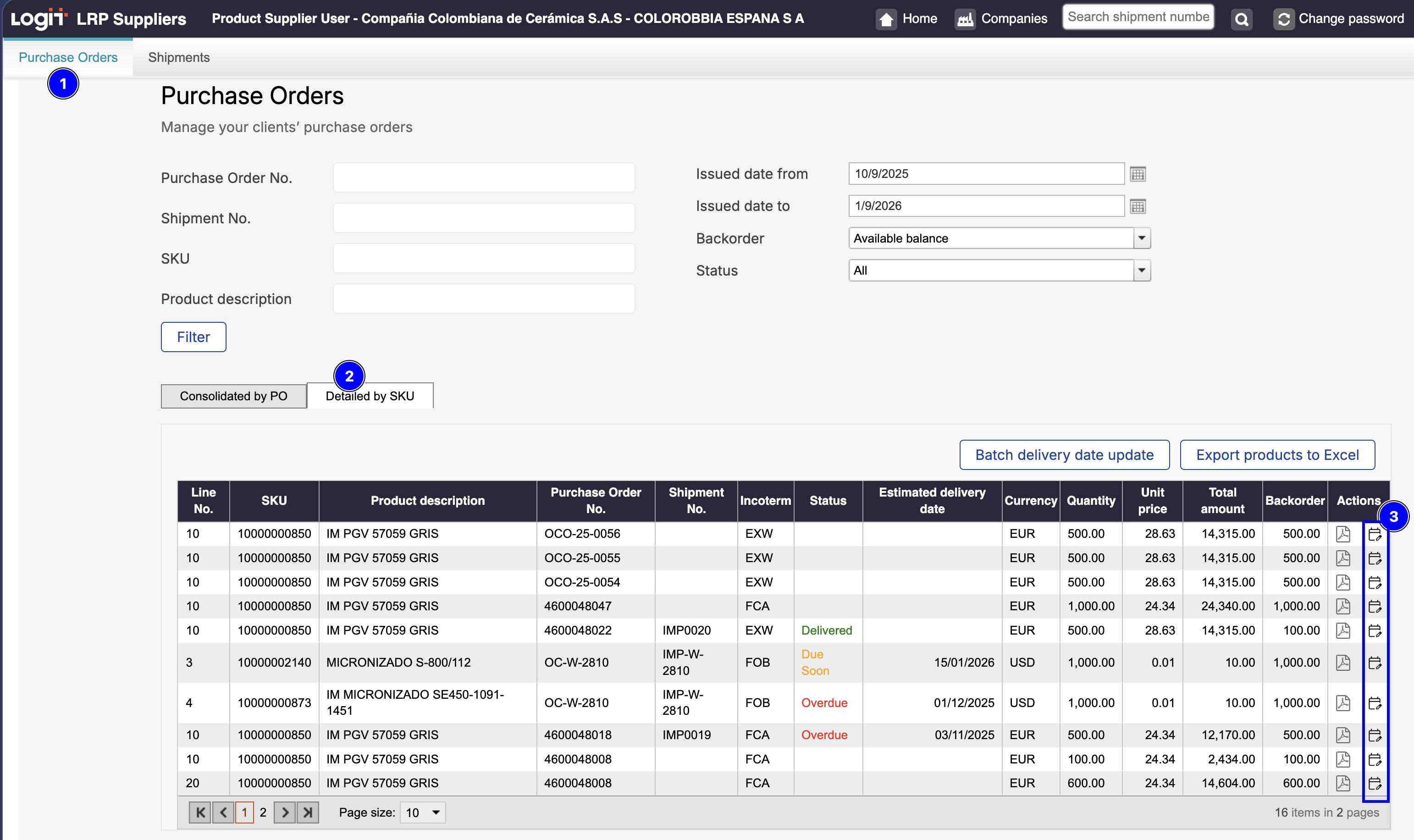
Click in Purchase Orders,
-
Select the Detailed by SKU tab
-
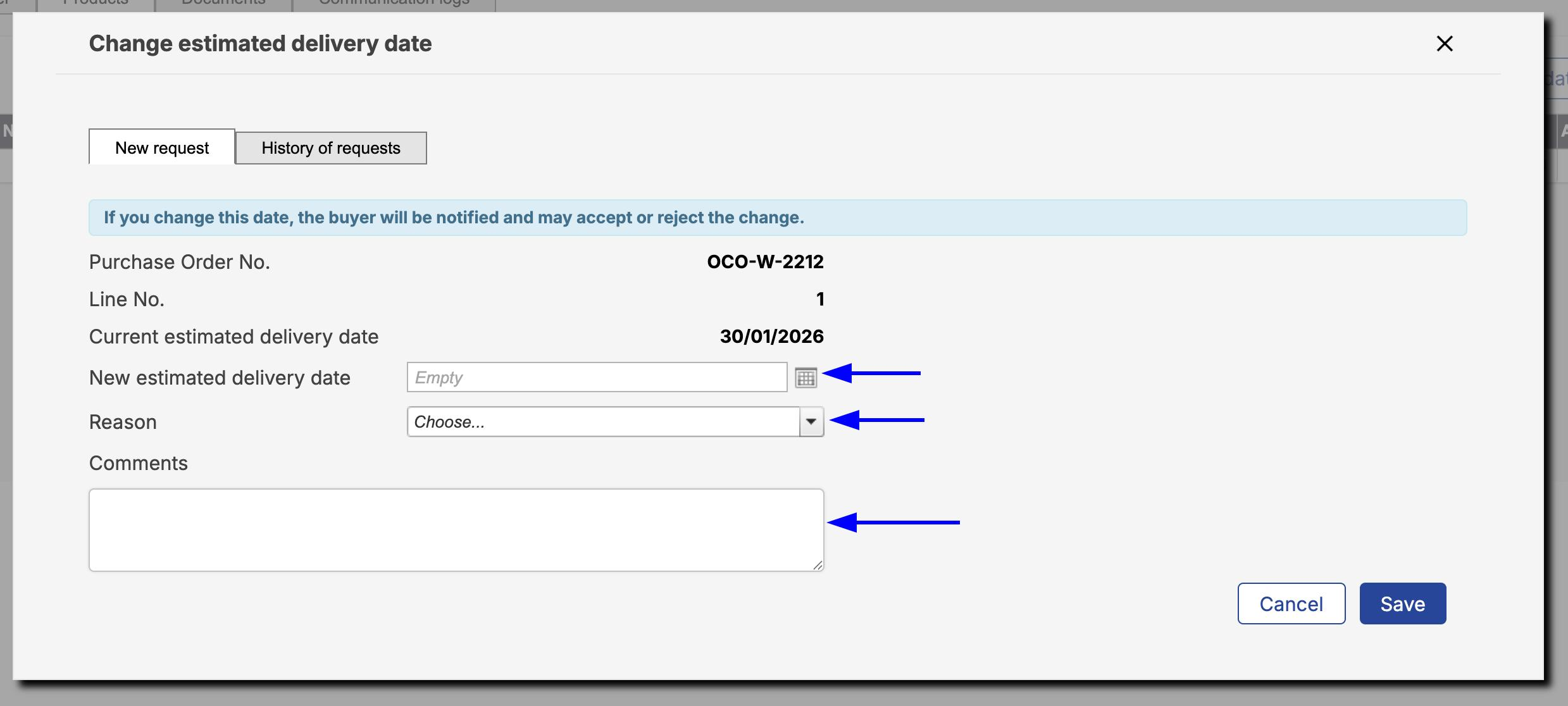
Click Change estimated delivery date in the actions column.
-
In the pop-up window, review the current delivery date and select:
-
The new estimated delivery date.
-
The reason.
-
The observations.
-
-
Save the changes and close the window.
A notification will be sent to the buyer and the person responsible for the operation on your client’s side.
Approval outcome
The buyer can accept or reject the request.
-
If the request is accepted, the estimated delivery date will be updated to the new date.
-
If the request is rejected, the estimated delivery date will remain unchanged.